PowerShell for All!
Published: January 13, 2023
For years, the Linux community has critiqued Windows for lacking a sophisticated shell comparable to BASH or ZSH. While the command prompt existed, it was considered inadequate for power users. Microsoft's response—PowerShell—provides a capable alternative that rivals Unix-like shells, though with distinctive syntax.
Whether you're interested in becoming a Windows power user, exploring shell scripting fundamentals, or transitioning from a Unix background, PowerShell represents a valuable skillset.
Installing PowerShell
Windows Installation
Good news: PowerShell comes pre-installed on Windows 10 and 11 for all users. Search "PowerShell ISE" in your Start Menu to access the integrated development environment.
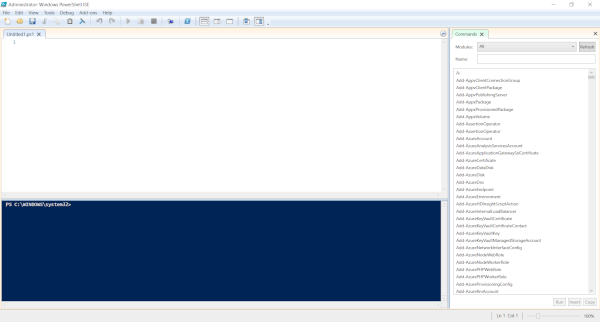
The ISE (Integrated Scripting Environment) provides a graphical interface for writing and testing PowerShell scripts, similar to an IDE for traditional programming.
Linux Installation
For Unix enthusiasts wanting to troubleshoot PowerShell scripts on Linux systems, installation follows these steps:
sudo apt-get update
sudo apt-get install -y wget apt-transport-https software-properties-common
wget -q "https://packages.microsoft.com/config/ubuntu/$(lsb_release -rs)/packages-microsoft-prod.deb"
sudo dpkg -i packages-microsoft-prod.deb
sudo apt-get update
sudo apt-get install -y powershell
pwsh
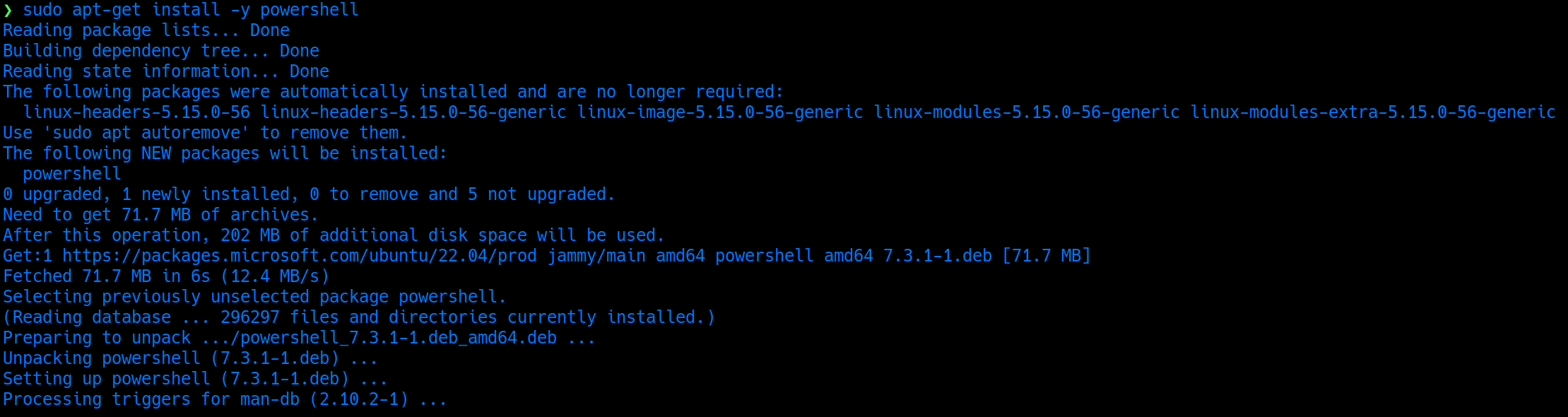
Yes, you can run PowerShell on Linux! Microsoft open-sourced PowerShell Core, making it cross-platform.
Why Script in PowerShell?
Real-World Automation Example
Consider a scenario requiring daily file backups to a network drive. Manual backup processes are error-prone and easily forgotten. A PowerShell script automates this entirely:
# Get Timestamp
$date = Get-Date -UFormat "%Y%m%d"

# Clean Downloads Directory
Get-ChildItem -Path C:\Users\<userName>\Downloads\ -Include *.* -File -Recursive | foreach { $_.Delete()}

# Create a .zip of today's backup
Compress-Archive -Path C:\Users\<userName> -DestinationPath Y:\Documents\Daily_Documents_Backup_$date.zip -Update

# Clean up backups more than 10 days old
for ($num = 10 ; $num -le 365 ; $num++){
  $Temp = (Get-date).AddDays(-$num)
  $fileToDelete = "Y:\Documents\Daily_Documents_Backup_"+(Get-Date $Temp -UFormat "%Y%m%d")+".zip"
  if (Test-Path $fileToDelete) {
    echo("Found " + $fileToDelete + ", removing now...")
    Remove-Item $fileToDelete
  }
}
This script:
- Generates a timestamp for unique filenames
- Cleans the Downloads directory to save space
- Creates a compressed backup with the current date
- Removes old backups older than 10 days to manage storage
Scheduling Automation
Execute the script via PowerShell ISE or command line, then schedule it using Windows Task Scheduler for automated daily execution.
Note: Corporate environments may restrict Task Scheduler access. Check with your IT department about automation policies.
Learning Resources
For Beginners
TutorialsPoint's PowerShell guide provides comprehensive fundamentals covering loops, variables, and programming concepts specific to PowerShell.
For Experienced Scripters
PowerShell Cookbook by Lee Holmes serves as a practical reference enabling rapid skill development:
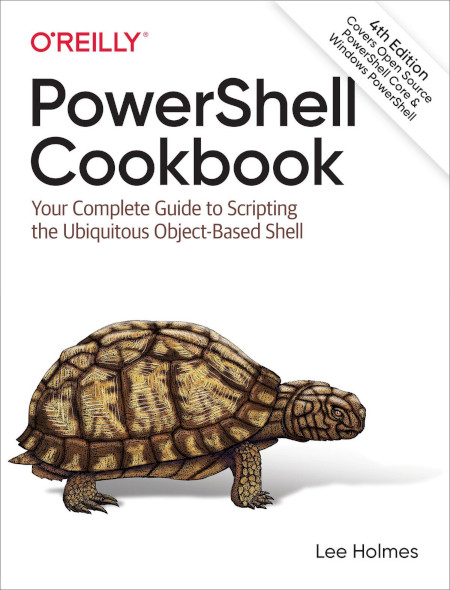
This book provides real-world examples and solutions to common PowerShell challenges.
Troubleshooting
When encountering errors, searching error messages online yields numerous helpful resources across technical communities like Stack Overflow and the PowerShell subreddit.
Key Concepts
PowerShell differs from BASH in several important ways:
- Object-oriented: PowerShell works with .NET objects, not just text streams
- Cmdlet syntax: Commands follow a
Verb-Nounpattern (Get-Process, Set-Location) - Pipeline power: Pass rich objects between commands, not just strings
- Cross-platform: PowerShell Core runs on Windows, Linux, and macOS
Conclusion
PowerShell enables better technological control through automation and scripting fundamentals. Whether you're automating backups, managing Active Directory, configuring servers, or performing DevOps tasks, PowerShell provides the tools to work more efficiently.
Exploring this tool empowers users to understand their systems more deeply and automate repetitive tasks that would otherwise consume valuable time. Start small with simple scripts, then gradually tackle more complex automation challenges.