Python Pandas Improves Spreadsheet Workflows
Published: December 8, 2022
This article demonstrates how Python Pandas streamlines the tedious task of merging spreadsheet data. I'll present a real-world scenario where a team manages an automatically-generated issue tracker that needs manual augmentation with custom tracking columns.
The Problem
Teams managing automated issue tracking receive daily spreadsheets with new problems, but these lack the custom columns added to their Master Tracker—assignee, involved teams, dependencies, ticket numbers, etc.

Manually merging 50+ daily issues with existing tracked items (ranging from 2 to 200+) becomes tedious and error-prone. Copy-pasting rows between spreadsheets wastes time and risks losing data.
The Solution: Python Pandas
Python's Pandas library provides the merge() function to automatically combine two DataFrames while preserving all data from both sources.
Setup and Imports
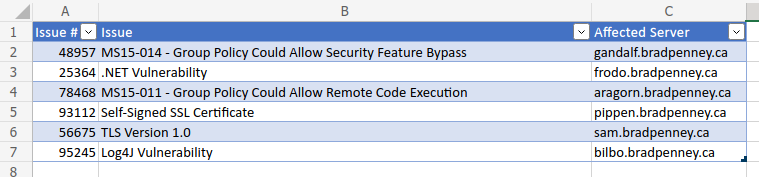
First, ensure you have the necessary starting files:
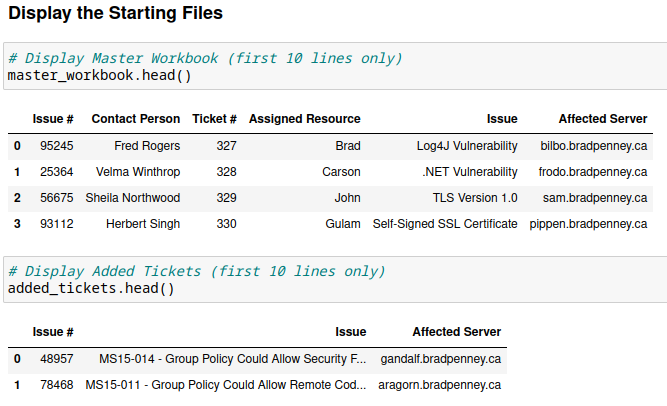
import pandas as pd

# Import both spreadsheets as DataFrames
master_tracker = pd.read_excel('master_tracker.xlsx')
new_issues = pd.read_excel('new_issues.xlsx')
Data Exploration
Best Practice: Check the results before actually merging. Use the .head() method to preview your data:
# View first few rows of each DataFrame
print(master_tracker.head())
print(new_issues.head())

# Check row counts
print(f"Master tracker has {len(master_tracker)} rows")
print(f"New issues has {len(new_issues)} rows")
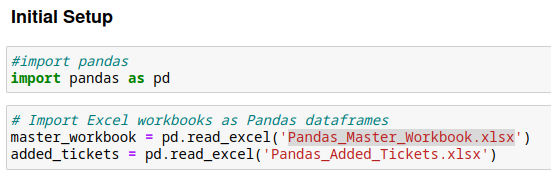
This validation helps you anticipate what the merged result should look like.
The Merge Operation
The core operation uses Pandas' merge() function with an outer join:
merged_df = pd.merge(master_tracker, new_issues, how='outer')
The how='outer' parameter preserves all information from both DataFrames. Missing values appear as NaN (which display as blank cells when exported to Excel).
Understanding Join Types
The how argument supports standard SQL-style joins:
inner: Only rows with matching keys in both DataFramesouter: All rows from both DataFrames (default behavior we want)left: All rows from the left DataFrame, matching rows from rightright: All rows from the right DataFrame, matching rows from left
For our use case, outer ensures we don't lose any issues from either the master tracker or the new issues list.
Validation
After merging, verify the results match your expectations:
# Check the merged DataFrame
print(f"Merged DataFrame has {len(merged_df)} rows")

# Validate: should equal master + new rows (assuming no duplicates)
expected_total = len(master_tracker) + len(new_issues)
if len(merged_df) == expected_total:
    print("Merge successful - all rows accounted for")
else:
    print(f"Warning: Expected {expected_total} rows, got {len(merged_df)}")
Export Results
Once validated, write the merged DataFrame back to Excel:
merged_df.to_excel('updated_master_tracker.xlsx', index=False)
The index=False parameter prevents Pandas from adding an extra index column to your spreadsheet.
Practical Benefits
This automation provides:
- Time savings: Seconds instead of minutes per day
- Accuracy: No copy-paste errors or missed rows
- Consistency: Reproducible process anyone can run
- Scalability: Handles 5 or 500 new issues equally well
- Documentation: Code serves as process documentation
Jupyter Notebook Workflow
I recommend using Jupyter Notebooks for this task. The step-by-step execution allows verification before proceeding, and original DataFrames remain in memory if errors occur:
# Cell 1: Imports and load data
import pandas as pd
master_tracker = pd.read_excel('master_tracker.xlsx')
new_issues = pd.read_excel('new_issues.xlsx')

# Cell 2: Preview data
print(master_tracker.head())
print(new_issues.head())

# Cell 3: Perform merge
merged_df = pd.merge(master_tracker, new_issues, how='outer')

# Cell 4: Validate results
print(f"Merged: {len(merged_df)} rows")

# Cell 5: Export
merged_df.to_excel('updated_master_tracker.xlsx', index=False)
Each cell can be run independently, making debugging straightforward.
Beyond Basic Merging
This brief article barely scratches the surface of how Python Pandas can help automate tedious day-to-day nuisance chores. The merge() function supports:
- Multiple key columns: Match on several columns simultaneously
- Custom suffixes: Handle column name conflicts
- Indicator columns: Track which DataFrame each row came from
- Validation: Ensure merge keys exist in expected DataFrames
Getting Started
To begin automating your spreadsheet workflows:
- Install Python and Pandas:
pip install pandas openpyxl - Start with simple tasks like this merge operation
- Gradually expand to data cleaning, analysis, and visualization
- Build a library of reusable scripts for common tasks
Conclusion
Mastering Pandas merge() is foundational for automating repetitive data tasks. Whether you're managing issue trackers, combining sales reports, or reconciling datasets, these skills transfer across domains.
Invest time learning Pandas—the productivity gains compound quickly.